Insert and play.
Auto listens for about a second and classifies the source as vocal, drums, bass, harmonic material or a bus. That choice changes the internal path—not the number on the dial.
The Dial Suite · User guide
A practical guide to choosing the right plate, understanding what its single control is changing, and hearing the moment it has done enough.
Start hereOne control can still reward a deliberate move.
Before the first turn
Auto listens for about a second and classifies the source as vocal, drums, bass, harmonic material or a bus. That choice changes the internal path—not the number on the dial.
Start near the default and make the decision with the rest of the session playing. Drag the knob to see the engine’s live explanation of what that position is doing.
The loudness matcher measures for roughly two seconds and moves smoothly. Let it settle before A/B testing so louder does not win the decision by accident.
Plate controls
Tilt and Widen are bipolar controls. Their unchanged position is 5. On Tilt, 0 is warm; on Widen, 0 is mono. Every other Dial uses 0 as clean bypass.
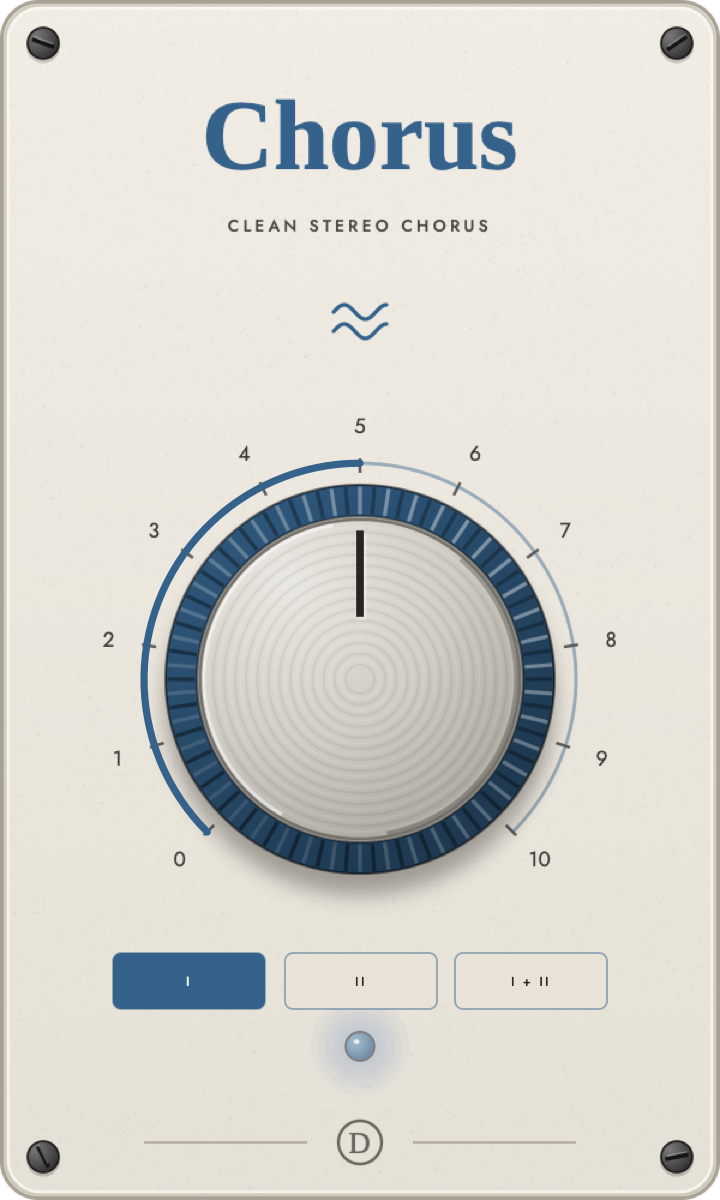
Classic dual-delay stereo movement without generated hiss or clock noise. One blend knob and three modes turn keys, guitars and synths into wider, gently moving parts. Unlike Swirl, Chorus keeps a selected rate and depth while the knob blends dry and wet.
DryThe original signal, aligned to the plugin’s reported processing latency.
A little movementKeep the dry center forward and blend the modulated delays underneath.
Classic balanceEqual dry and wet. Start here for the familiar chorus interaction.
Toward vibratoThe wet voices take over. At 10 there is no dry signal; more wet is not necessarily more chorus.
I is slow and spacious (about 0.51 Hz). II is faster and more animated (about 0.86 Hz). I + II is Dinner’s fast, shallow 4.8 Hz swirl, not two full choruses stacked. Check the blend in mono as well as stereo.
Insert on a stereo instrument or choose mono-to-stereo in Pro Tools. Start with I at 5; compare II, then lower the blend if the movement distracts. For an effects return, use 10 and blend with the send. Double-click the knob to return to 5. Click the blue light to compare with dry audio; click D to view your trial or import a licence file.
Know this: Chorus shares the collection’s 14-day trial. A standalone Chorus licence or a Dial Suite / Dinner Complete licence issued with Chorus unlocks it. Older offline bundle files do not gain new entitlements automatically; contact Dinner for an updated file. The output control is hidden, but its saved value is retained for sessions made with the earlier Dinner Chorus preview.
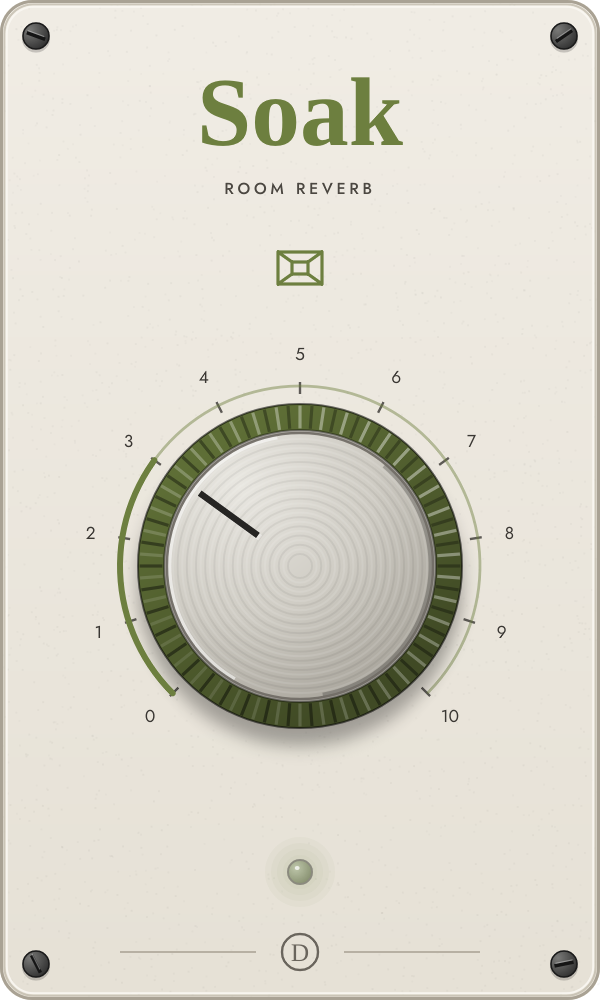
Soak grows from close early reflections into a long, ducked hall while keeping the dry source in front.
DryBit-exact bypass.
Close roomMostly early reflections: short, clear and intimate.
Growing spaceMore late field, longer decay and darker damping.
Hall washLarge, dark tail with stronger ducking under the source.
Listen to the gap after a phrase or drum hit. That is where the tail should bloom without swallowing the direct sound.
Start near 2 for drums and 3 for vocals. Set it while the full mix plays, then briefly solo the track to check that the tail is not metallic or too dark.
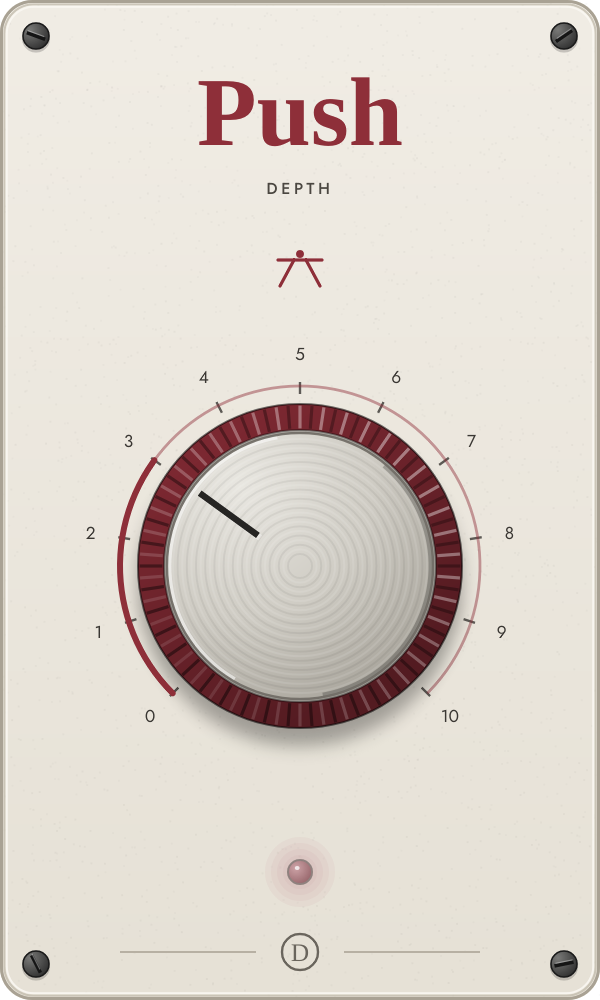
Push places a source farther away using the cues real distance creates: less direct level and proximity, darker air, more reflections and a narrower image.
Front rowBit-exact bypass; the source stays as recorded.
A step backSubtle air loss and early reflections.
Across the roomLess direct sound, less proximity bass and a narrower image.
Back wallStrong distance cues, dark air and clearly audible room.
Judge position, not brightness alone. The source should feel behind another element rather than simply EQ’d darker.
Use it in context. Put the lead and backing part together, then raise Push on the backing part until their front-to-back positions separate.
Know this: Distance is allowed to feel slightly quieter; Push intentionally restores only part of the natural level loss.
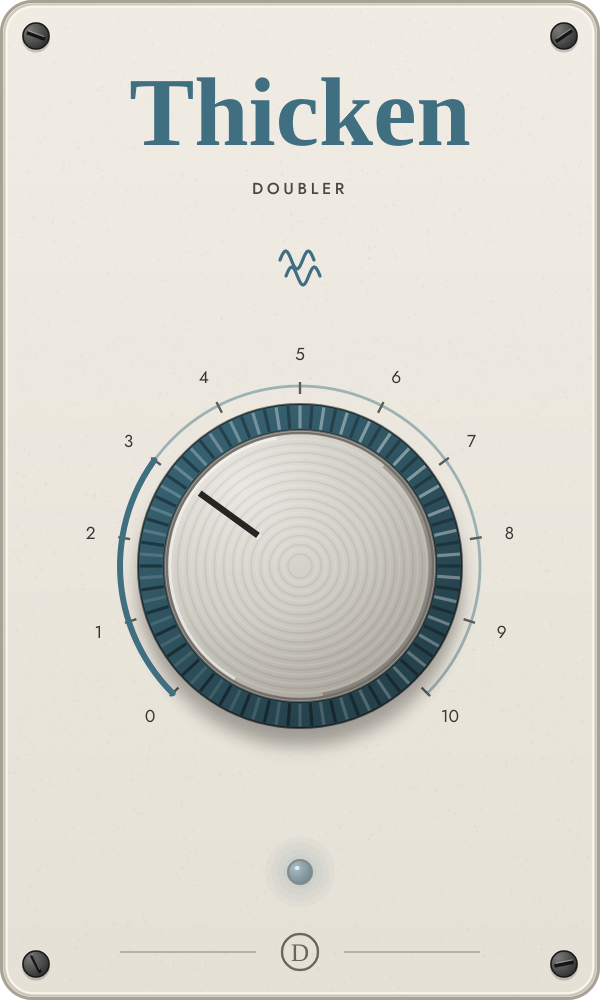
Thicken builds natural ADT-style doubles with independent delay, pitch drift and stereo placement instead of a repeating chorus wobble.
SingleBit-exact bypass.
One doubleA close, slowly wandering ADT voice.
Wide pairTwo differently delayed and detuned voices spread left and right.
Four voicesA broad ensemble with more detune and darker outer layers.
The center should remain intelligible while the edges grow. In mono, check that the original does not turn hollow.
Start at 2–3 on lead vocals and 4–5 on guitars or synths. Push higher for backgrounds and deliberate stacked effects.
Swirl travels from a slow ensemble through classic chorus to an unmistakably wide, feedback-rich modulation effect.
CleanBit-exact bypass.
EnsembleTwo slow, shallow voices.
Classic chorusA deeper three-voice movement with more stereo spread.
Wide to flangedFour voices, shorter delays and rising feedback.
At low settings, notice motion rather than pitch wobble. At high settings, listen for the brighter comb-filter character as it approaches flanging.
Set it while sustained notes play. Short, percussive material can hide the movement that tells you whether the rate and depth feel right.
Echo begins as slapback, crosses into tempo-synced repeats, then opens into dark, diffused ping-pong delays that duck under the dry source.
DryBit-exact bypass.
SlapbackRoughly 90–130 ms with a single dark repeat.
Tempo echoDotted-eighth repeats, or straight eighths below 85 BPM, with rising feedback.
Ping-pong bloomWide cross-feedback, diffusion and stronger ducking.
Make sure the repeat rhythm supports the phrase. The top end should get darker with each repeat rather than competing with the dry source.
Confirm your DAW tempo first. Start around 2 for slap, 5 for rhythmic delay and 8 for a wide transition or throw.
Crush follows a curated chain from soft console and tape color through tube and amp drive to hard-clipped fuzz.
CleanBit-exact bypass.
Console / tapeSoft asymmetric saturation and gentle harmonics.
TubeMore drive and presence with rounded clipping.
AmpMid push, firmer clipping and a darker tone.
FuzzHard crust and a roughly 3 kHz tonal ceiling.
Ignore apparent loudness and focus on density, edge and sustain. On bass, verify that the fundamental remains clean; on vocals, check S sounds.
Move slowly through 2–6—small changes here can be more useful than the dramatic top end. Let the loudness matcher settle before deciding.
Squeeze adapts its threshold to the incoming level, then moves from gentle leveling through punch and density to a smashed parallel sound.
OpenBit-exact bypass.
LevelGentle ratio, slower timing and a soft knee.
PunchFaster action and more gain reduction while transients still speak.
DenseStronger compression with rising parallel blend.
SmashedUp to 20:1, fast timing and restored low-end weight.
Listen to the groove: attacks should feel shaped, not simply smaller. Watch for pumping on sustained bass or cymbal wash.
Play a representative loud section for a few seconds so the adaptive threshold settles. Start at 3 on vocals, 4 on drums and 2 on a mix bus.
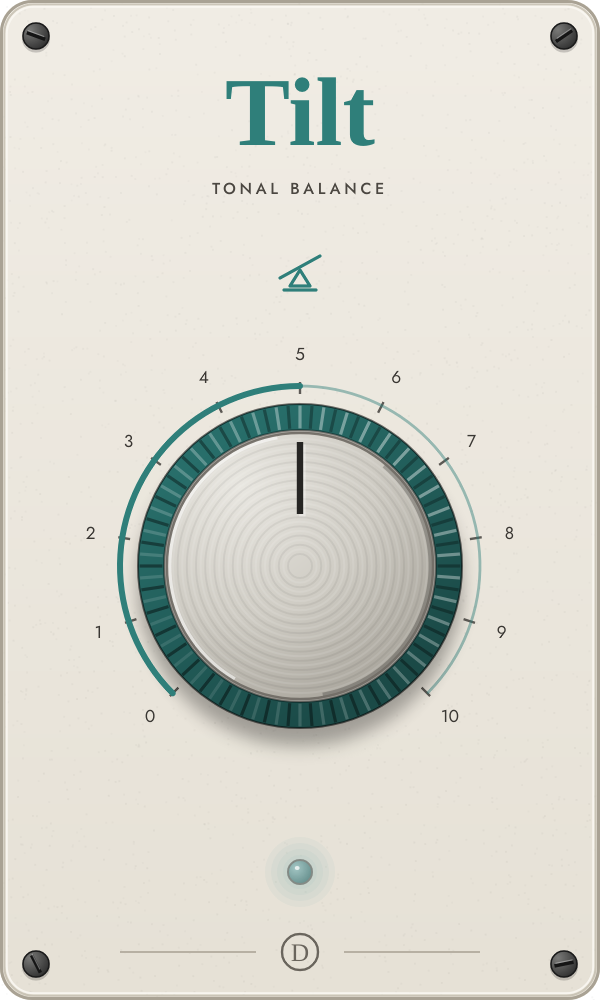
Tilt is a bipolar tone control. It rotates the spectrum around a source-aware pivot while loudness matching keeps brighter from automatically sounding better.
WarmerProgressively lowers the upper balance and raises the lower balance.
FlatThe original tonal balance.
BrighterProgressively raises the upper balance and lowers the lower balance.
Compare body against presence, not just treble. The pivot changes with the detected source: lower for bass, higher for vocals.
Begin at 5, not 0. Sweep to both sides, then return toward 5 until the source occupies its own tonal space.
Know this: Zero is the warmest setting, not bypass. Five is unchanged.
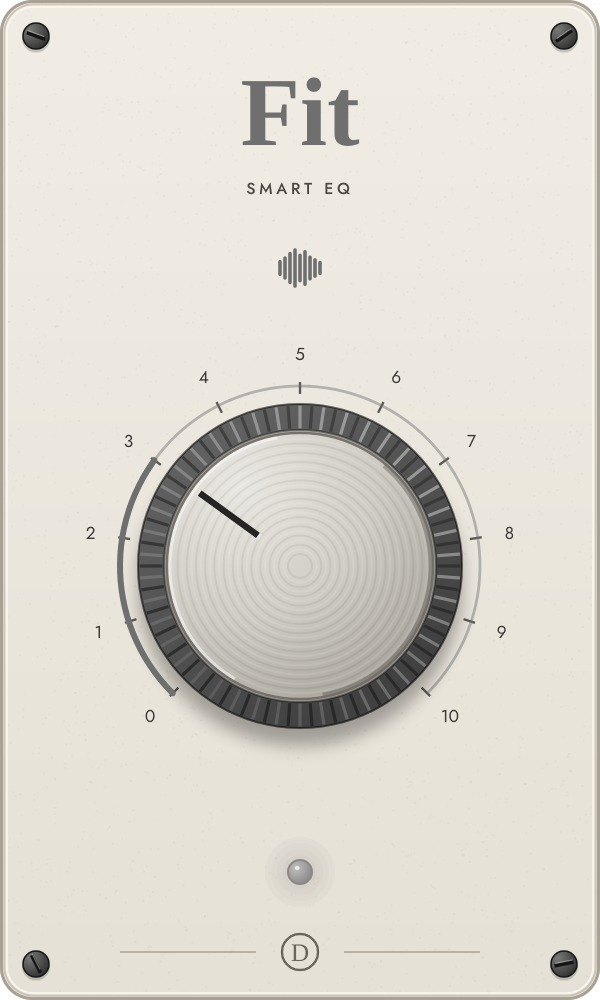
Fit measures the long-term spectrum in ten bands and gradually reshapes it toward a reference curve selected for the detected source.
UntouchedBit-exact bypass.
GuideA small fraction of the measured correction.
FitClearer movement toward the source reference.
Full matchThe strongest correction, with individual bands capped for safety.
Use a sustained or varied passage and listen for the overall low-to-high balance. This is not an instant static EQ; the correction develops as it measures.
Loop 5–10 seconds of representative audio, start around 5, and wait at least 3 seconds after a change before judging. Hover while dragging to see the low, high and maximum correction readout.
Know this: On already balanced material the change may be intentionally small. Force the correct source class if Auto has chosen the wrong target.
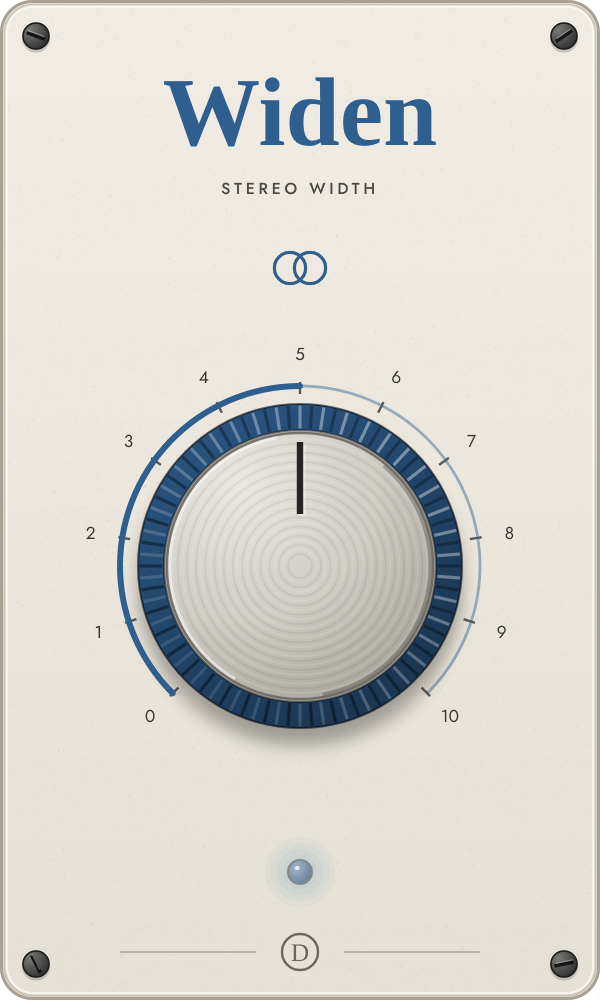
Widen is a bipolar image control: mono at the left, the recorded image in the center and a correlation-protected wider image at the right.
MonoSide information is removed.
NarrowerThe original stereo side is reduced.
As recordedThe original stereo image.
WiderHigh-frequency side grows; mono sources receive decorrelated width.
Check the edges in stereo and then collapse the mix to mono. Low frequencies below 120 Hz remain protected, and an internal guard reins in unsafe correlation.
Begin at 5. Use 6–7 on buses for polish and higher settings on individual textures. Judge on speakers or true stereo headphones.
Know this: Zero is mono, not bypass. Five is unchanged.
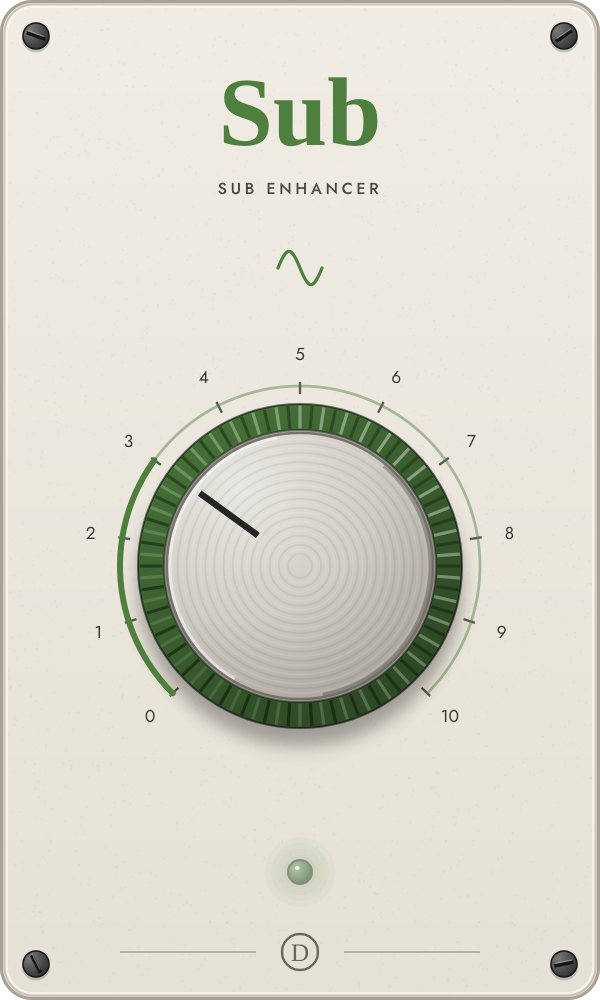
Sub tracks low pitch and adds a controlled sine layer. Bass sources receive a continuous sub; drum sources receive tuned, decaying kick reinforcement.
OriginalBit-exact bypass.
SupportA quiet tracked sine beneath the source.
WeightClearly audible low-frequency reinforcement.
ImpactStrong sub with a soft limiter controlling the generated layer.
Monitor on a system that reaches the sub range. On bass, confirm the added note follows correctly; on drums, listen for a clean decay after each kick.
Solo briefly to verify tracking, then set the final amount in the full mix. Force Bass for sustained low instruments or Drums for kick-style triggering if Auto is uncertain.
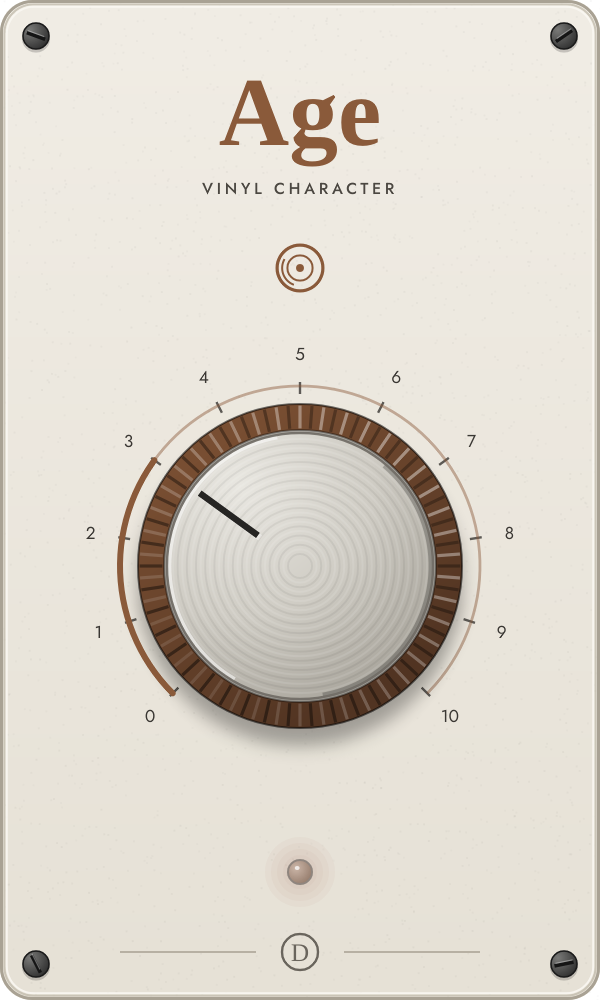
Age moves through increasingly degraded playback formats by combining pitch instability, bandwidth loss, saturation, hiss, crackle and narrowing.
CleanBit-exact bypass.
TapeGentle wow, hiss, saturation and high-frequency loss.
CassetteMore instability, narrower bandwidth and audible noise.
VinylCrackle, reduced width and a lower top-end ceiling.
Telephone / AMNear-mono, mid-focused and roughly 400 Hz–3.4 kHz.
Notice width and bandwidth as much as noise. On low-end sources, the protective high-pass is gentler so the musical fundamental remains.
Automate Age upward for transitions, or park it around 2–4 for a lived-in texture. Check noise during pauses before committing.
The useful rule